
Smart Icons: your own commands, one double-click away
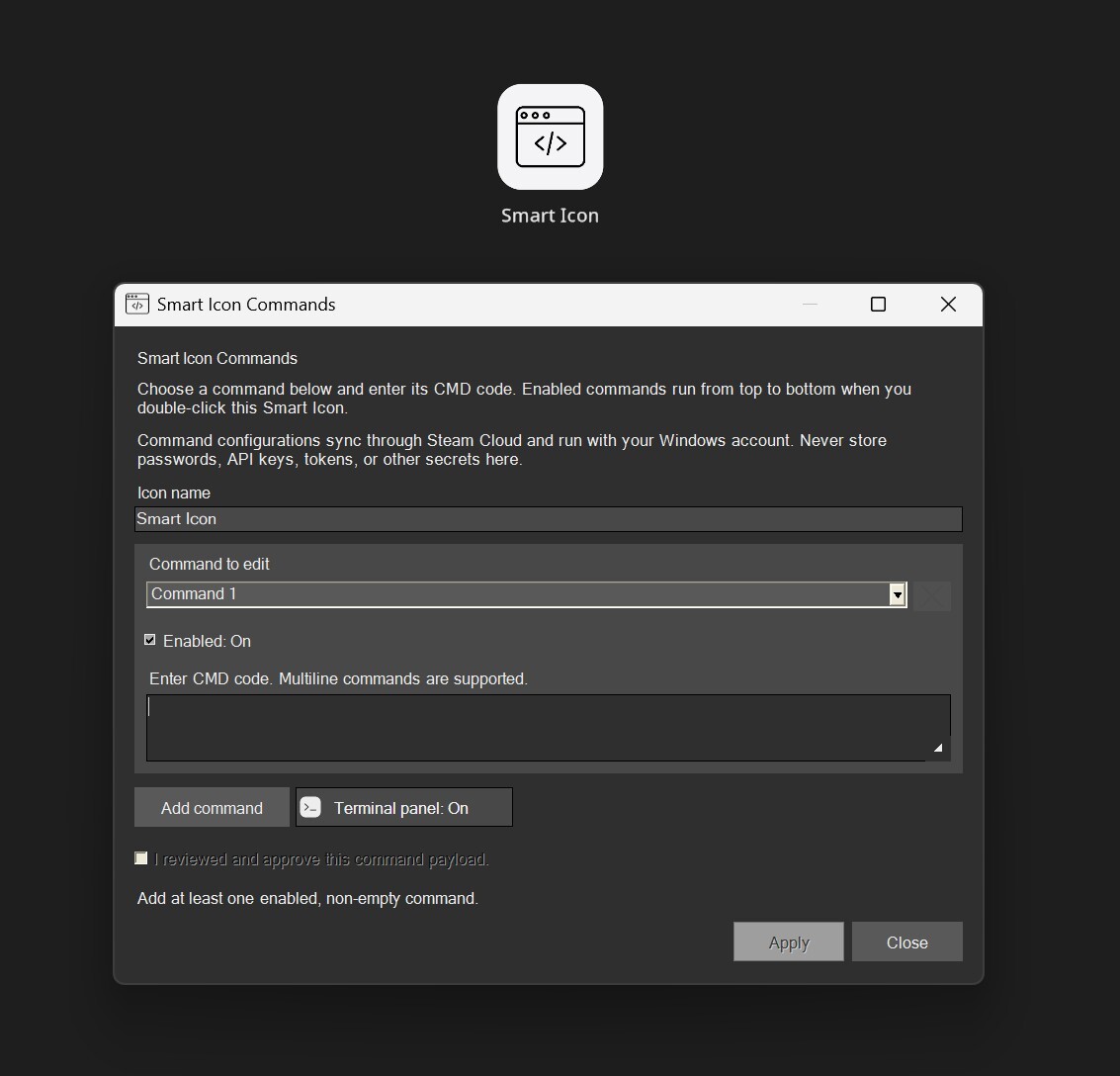
A Smart Icon looks like any other icon on your Minimalist Desktop workspace, but instead of pointing at a program it holds your own Windows CMD code. Double-click it and your commands run in order, top to bottom.
Use it for the small routines you repeat every day: start a dev server, mount a drive, clean a build folder, kick off a backup, open a project the way you always open it — a whole sequence behind one icon on your desktop.
How it works
- Add it like any icon - Drag a Smart Icon into your workspace from the edit menu. It supports the same 3D cube and 2D flat modes, palettes, custom images, names, scaling, rotation, and placement as your other icons.
- Write your commands in blocks - Add as many command blocks as you need, name your icon, reorder them, and switch individual blocks on and off without deleting them.
- One session, top to bottom - Enabled blocks run in a single CMD session, so a folder you change with cd or a variable you set carries into the next block. Multiline commands, pipes, and && all work exactly as you typed them.
- Watch it run - The built-in terminal panel shows live output, running/success/failure state, and the exit code, without opening a separate console window. Turn the panel off if you prefer your commands to run quietly.
- Cancel anytime - A Smart Icon runs one job at a time. Double-clicking again while it is busy will not start a second copy, and you can cancel a running job from the panel.
Deliberate by design
Running code should never be an accident, so Smart Icons are built to be intentional:
- Double-click only - A single click selects or drags the icon and never runs anything. A completed drag never runs anything either. This holds even if your other icons are set to launch on a single click.
- You approve what runs - Changed commands must be reviewed and applied before they can execute. Editing the payload invalidates the previous approval, so nothing runs behind your back.
- Nothing runs on its own - Commands never fire while your workspace loads, while syncing, while duplicating an icon, or while switching between 2D and 3D.
- Your account, your rules - Commands run as your normal Windows user, with no elevation.
One note: Smart Icon configurations sync through Steam Cloud so your workspace travels with you. Treat them as ordinary saved data and never store passwords, API keys, tokens, or other secrets in a command.
Performance and stability
This update is also a large pass over how much work the desktop layer does while you are not looking at it.
Lighter rendering
- Icon cubes now use a purpose-built lightweight shader and shared materials instead of a full physically based material per icon, so large workspaces cost far less to draw.
- Adding a single icon no longer triggers a full-workspace repaint of every other icon, widget, and menu.
- Widgets got the same treatment: the analog clock rebuilds far less geometry per frame, and the weather widget stopped rebuilding its accent colors every frame.
Steadier background load
- Moving your mouse or working in another window no longer forces the desktop layer back up to full frame rate. It stays at the cadence your quality setting asked for.
- On Low quality, a covered desktop stays properly limited instead of quietly rendering at full speed behind your other windows.
- Animated GIF and video wallpapers keep their own frame-rate cap and performance modes, so a moving wallpaper does not have to cost you a moving GPU meter.
Starts clean, quits clean
- Startup no longer stalls the window long enough for Windows to mark the app as not responding.
- Auto start at logon now registers a single launch mechanism, fixing the case where two copies started together and shut each other down, leaving you with an empty desktop.
- Quitting now tears down cleanly, without leaving Windows error reports behind.
Multi-monitor fixes
- The desktop span is rebuilt from the monitors Windows actually reports, fixing the restart where the whole workspace appeared shifted to the left with a black band on the far edge.
- Your icon and widget positions are preserved when the display layout is recalculated, instead of falling back to a default layout.
Thanks for the reports
A lot of this update came straight from player messages — crash reports, screenshots of shifted monitors, and "it started empty again this morning". Keep them coming in the discussions; they are the fastest way to get something fixed.
Changed files in this update